Promoter Dashboard Overview Video
Promoter Dashboard
Objective
This document outlines the steps for using the Promoter Dashboard, enabling team members to assist clients in managing their referrals and earnings effectively.
Key Steps
1. Accessing the Promoter Dashboard 0:00
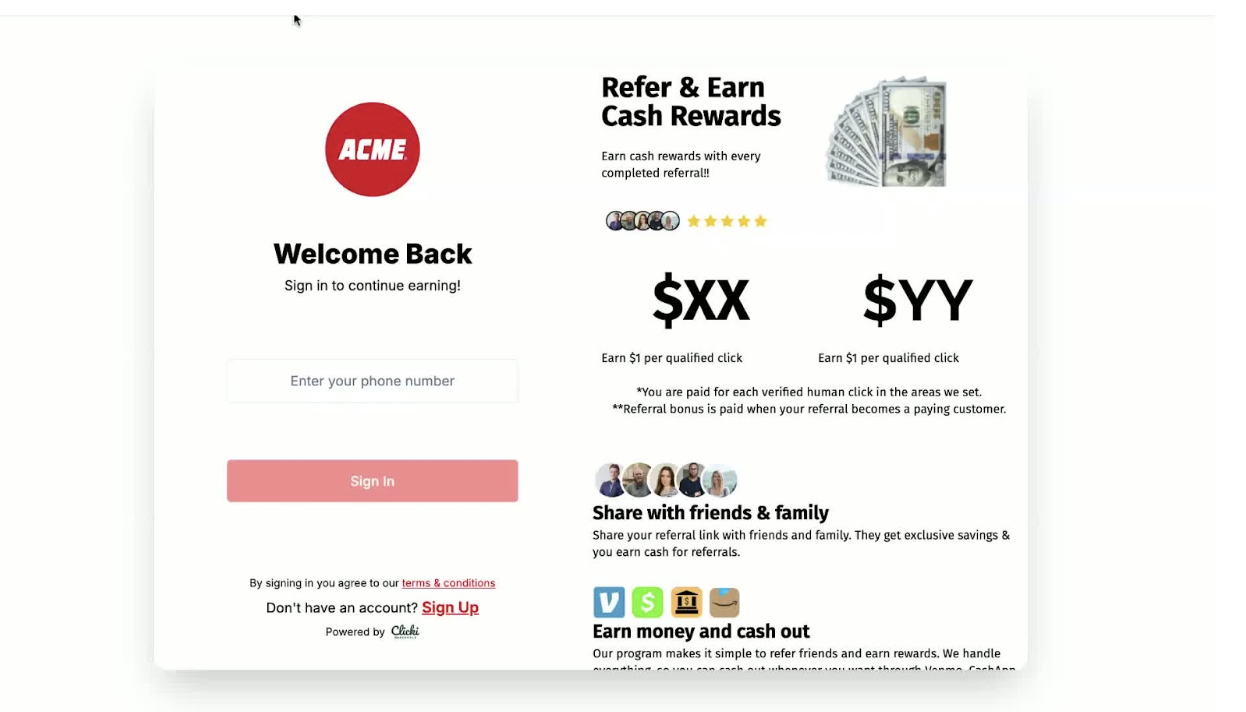
Navigate to the Promoter Dashboard login page.
Clients (promoters) will enter their phone number to log in.
2. Logging In 0:32
After entering the phone number, a one-time passcode will be sent via SMS.
Enter the passcode to access the dashboard.
3. Understanding the Dashboard Overview 1:12
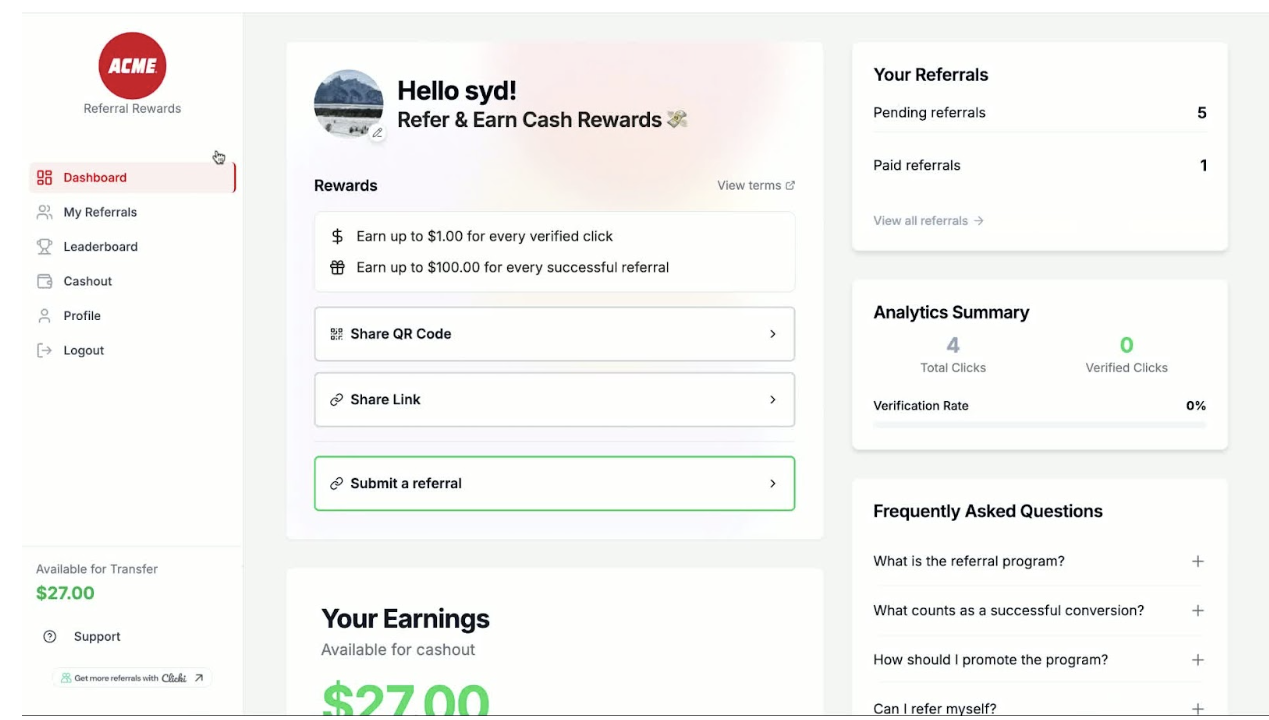
Upon logging in, the dashboard displays a welcome message and available rewards.
Each promoter has a unique QR code for sharing.
4. Sharing Referral Links 1:35
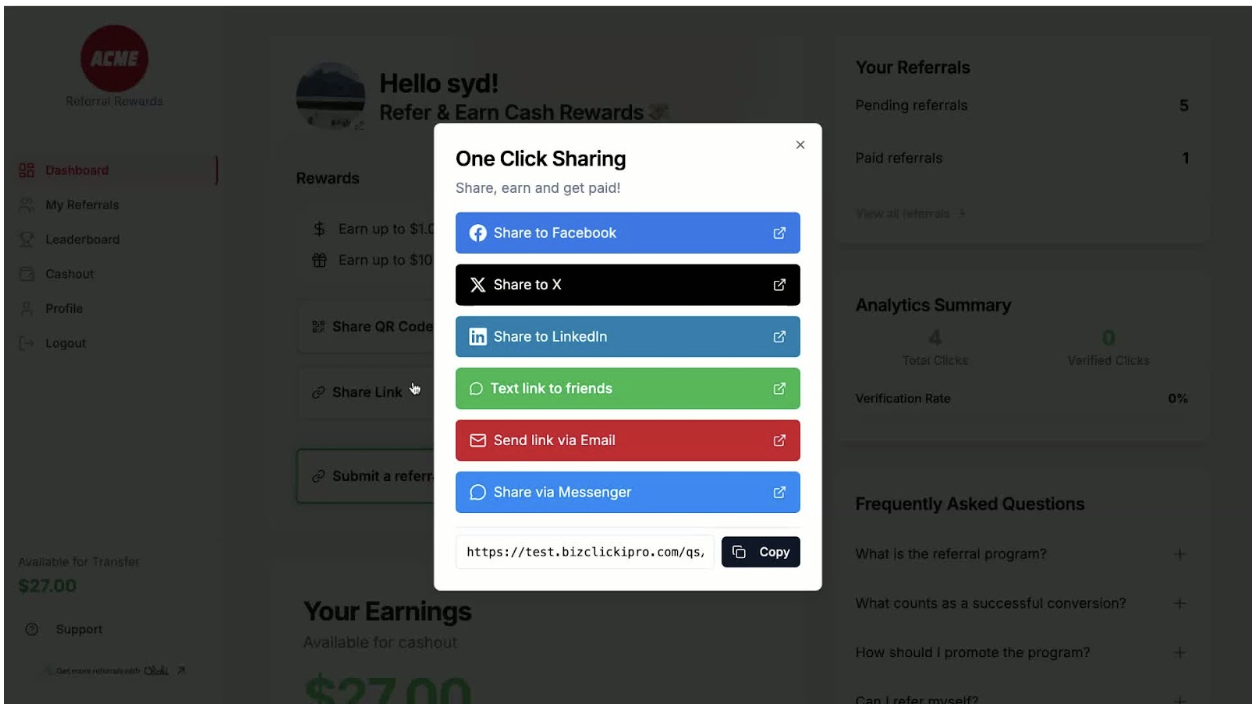
Promoters can share their personal email and referral links through various options provided.
5. Submitting Referrals 1:49
6. Checking Referral Status 1:56
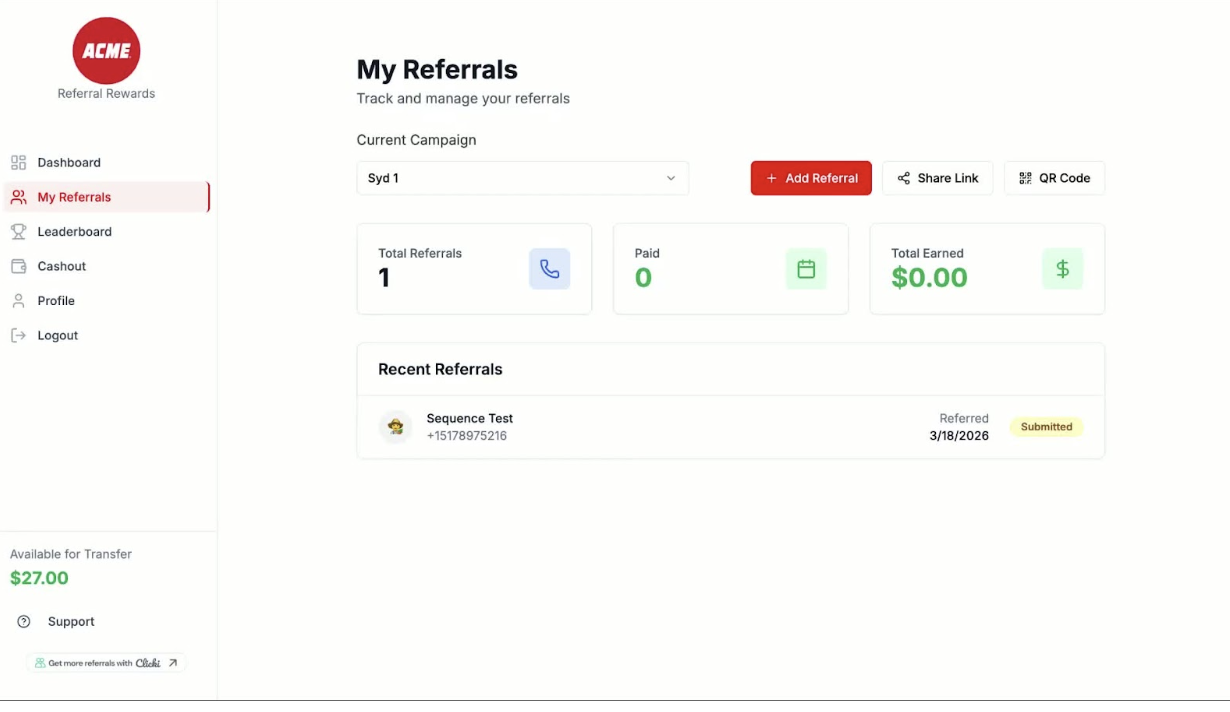
Promoters can view the status of their referrals (e.g., submitted, paid, duplicate, denied).
Promoters can self-submit referrals by entering the necessary information and pressing submit.
7. Accessing the Leaderboard 2:08
The leaderboard displays top-performing promoters, adding a competitive element.
8. Cashing Out Earnings 2:27
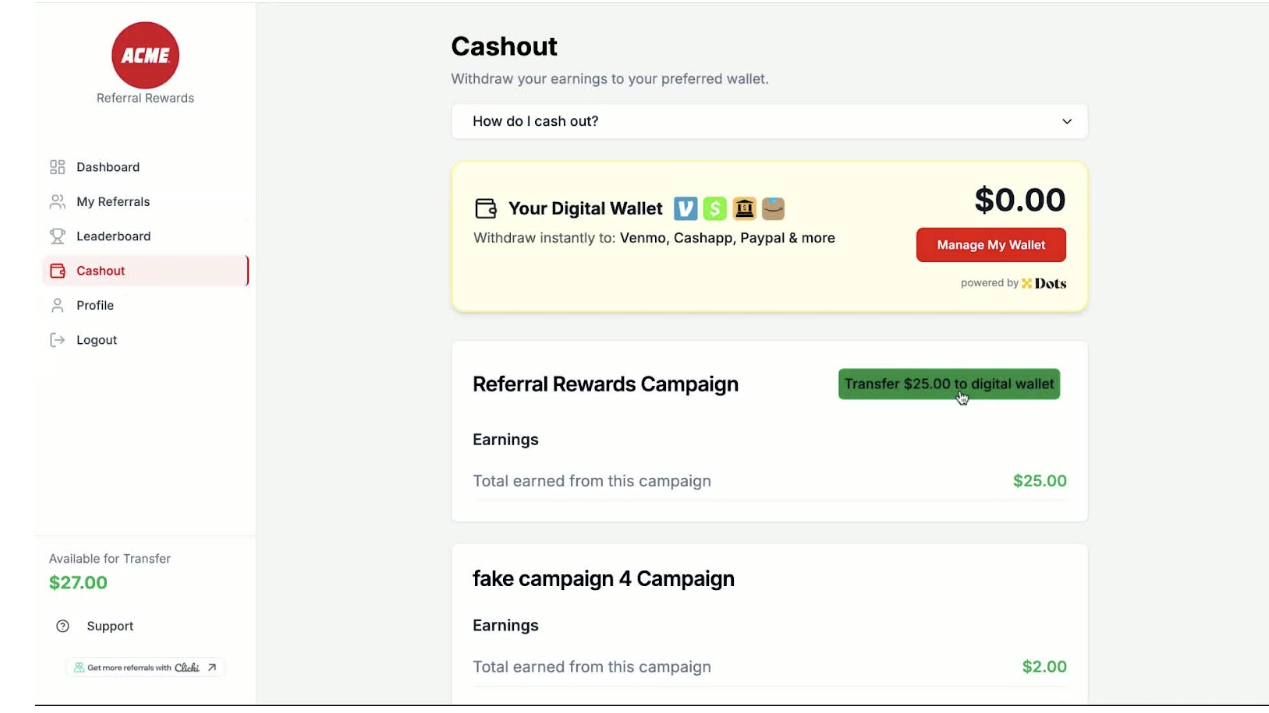
Promoters can cash out their earnings by selecting their preferred payment method (e.g., Venmo, PayPal, bank account).
9. Updating Profile and Notification Preferences 2:48
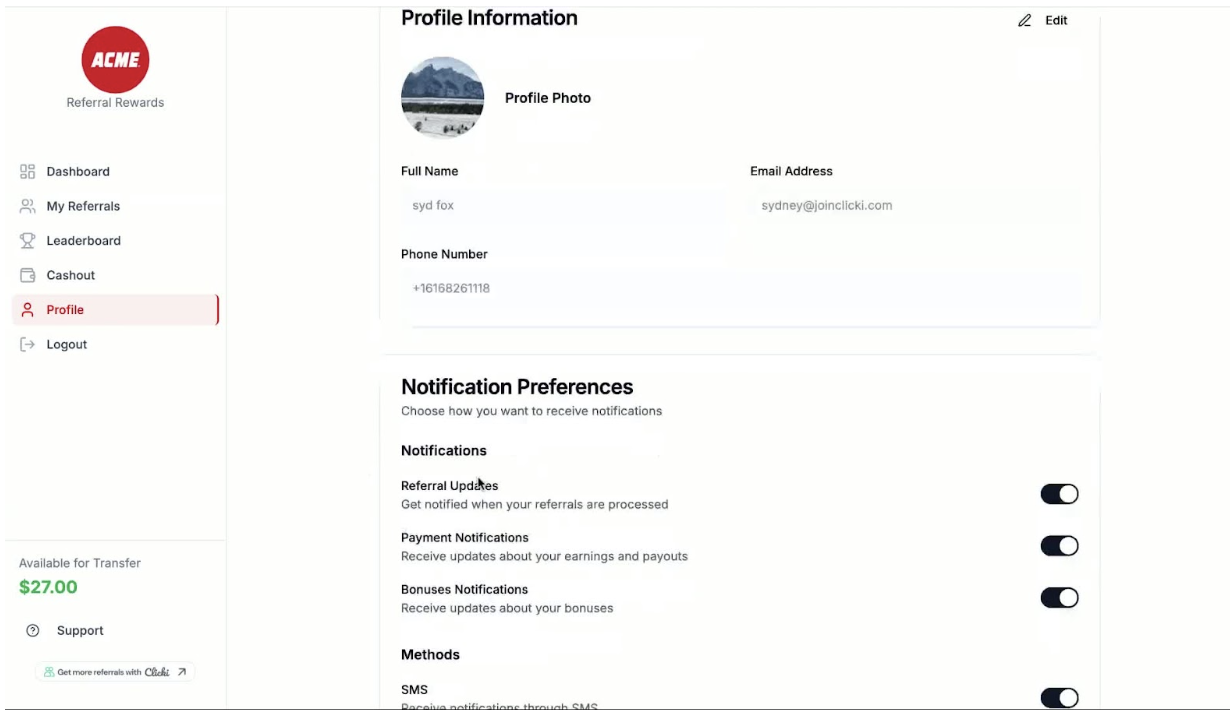
Each promoter can update their profile and notification preferences for SMS and email alerts.
10. Accessing Support 3:11
If issues arise, promoters can click the support button to submit a support ticket.
11. Frequently Asked Questions 3:23
Promoters can refer to the FAQ section for common inquiries.
12. Logging Out 3:35
13. Utilizing Referral Links 3:50
Use referral links on websites, business cards, and promotional materials to encourage sign-ups.
14. Universal Link Functionality 3:59
Ensure that the referral link directs users to the sign-up flow if their phone number is not recognized.
Cautionary Notes
Remind promoters to keep their phone number updated in the system to avoid login issues.
Tips for Efficiency
Encourage promoters to save their QR code for easy sharing.
Regularly check the leaderboard to motivate promoters to increase their referrals.
Utilize the FAQ section to quickly address common questions from promoters.