
How to Set Up Sequences in Dashboard
Video: https://youtu.be/4GsTw2QKnOA
Objective
Set up, customize, and publish a Sequences campaign in Clicki Referrals so promoters receive automated referral reminders by email and/or text. This SOP also covers verifying messaging costs and ensuring the account has sufficient credits before launch.
Key Steps
1. Open the Sequences feature from the dashboard 0:11
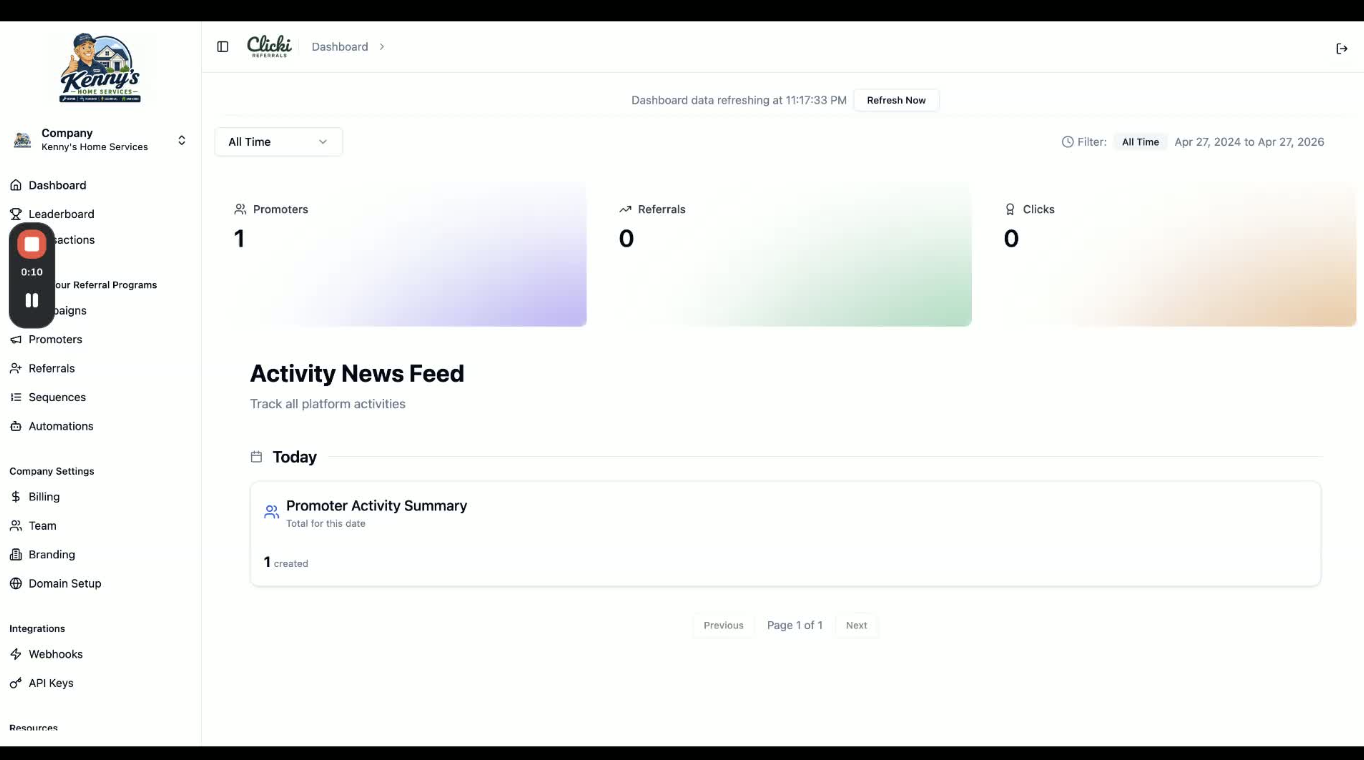
Log in to the Clicki Referrals dashboard.
Locate the Sequences option in the left-hand navigation.
Click Sequences to view available sequence creation options.
2. Choose how to create the sequence 0:20
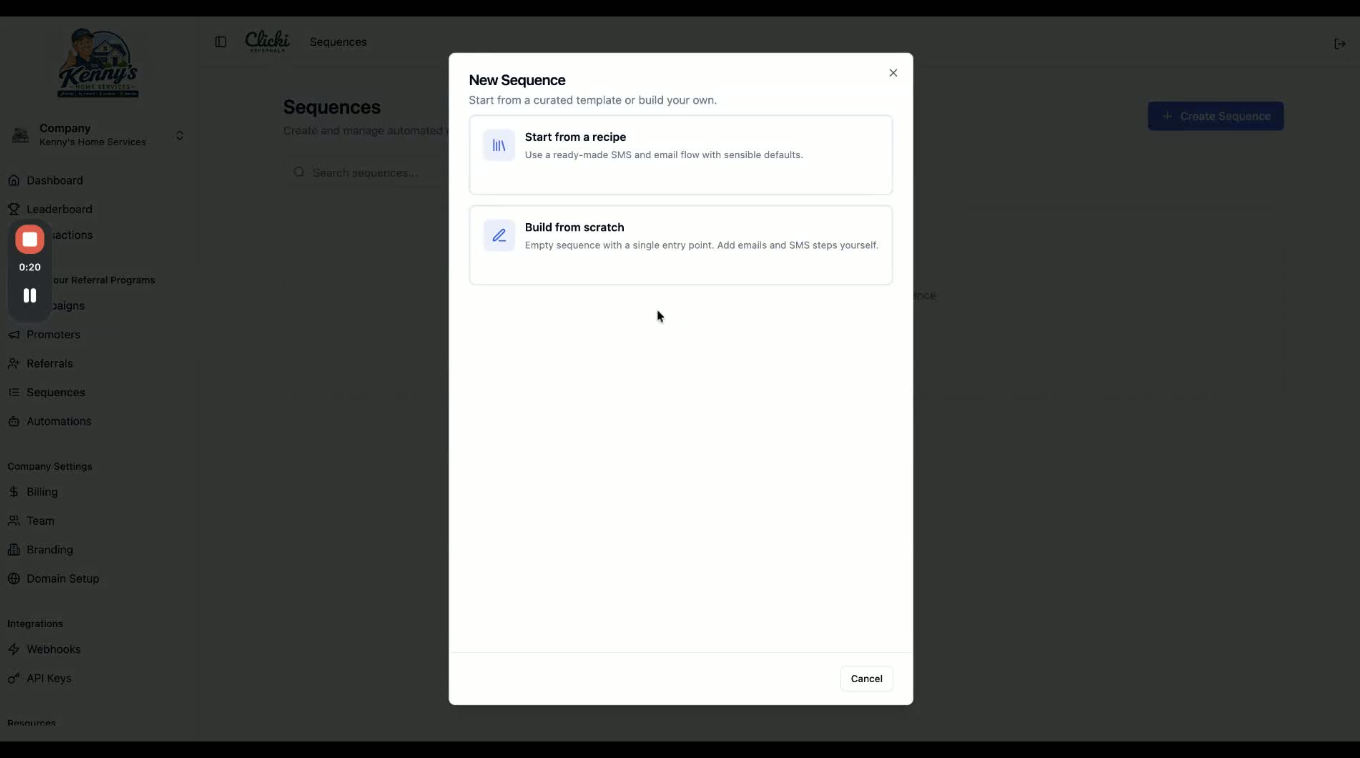
Select one of the two setup paths:
Start from a recipe (prebuilt template)
Build from scratch
For this SOP, choose the prebuilt Referral Program Reminder recipe.
Confirm that the template includes both text and email messaging.
3. Set the sequence recurrence and campaign targeting 0:40
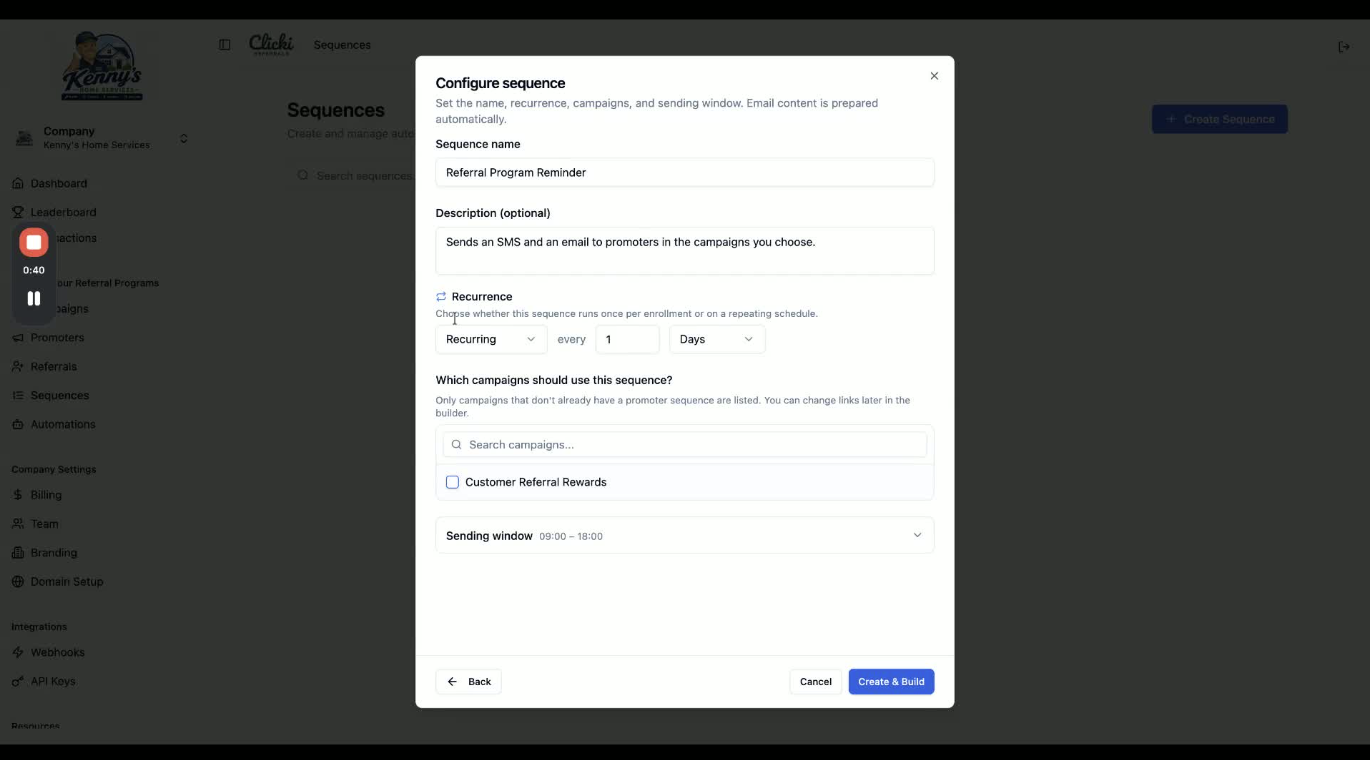
Review the default recurrence schedule.
Adjust the send frequency to an appropriate interval; in the example, change it from 1 day to 30 days.
Select the campaigns that should be included in the sequence.
Remember that campaign selection can be adjusted later if needed.
4. Configure the sending window and time zone 0:54
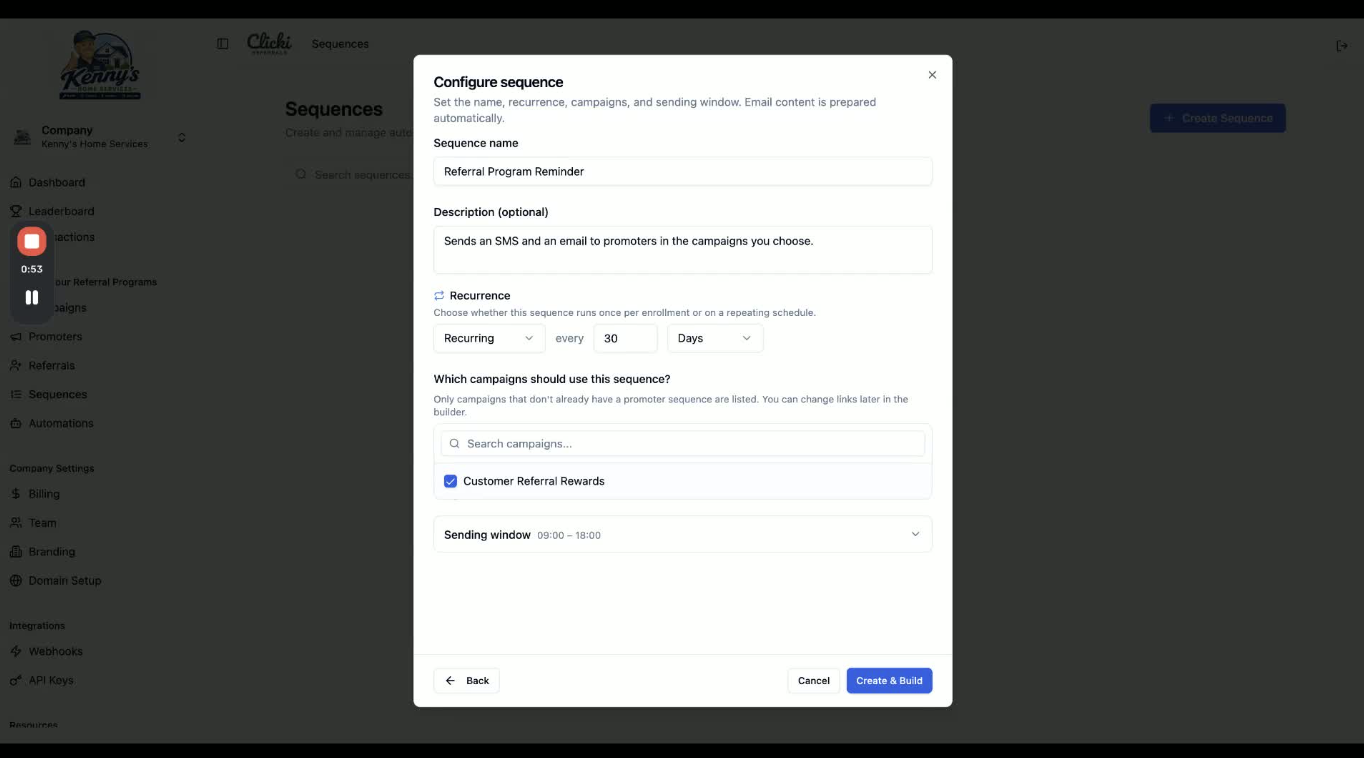
Set the sending window so messages are delivered during business hours.
Verify the correct time zone before proceeding.
Make sure the schedule aligns with the hours you want to contact promoters.
5. Create the sequence template 1:13
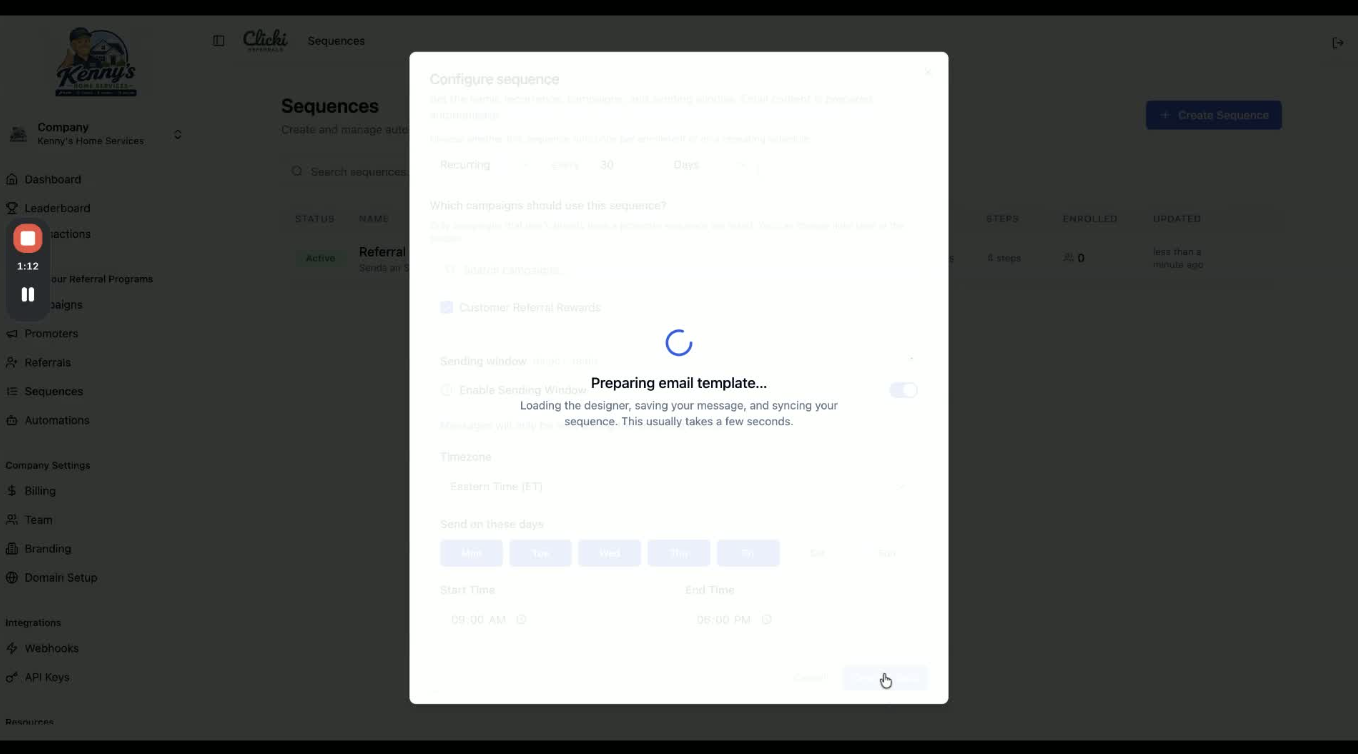
Click Create and Build.
Wait for the template to load and generate the editable sequence draft.
Allow a few moments for the system to prepare the sequence.
6. Review text message costs and message length 1:20
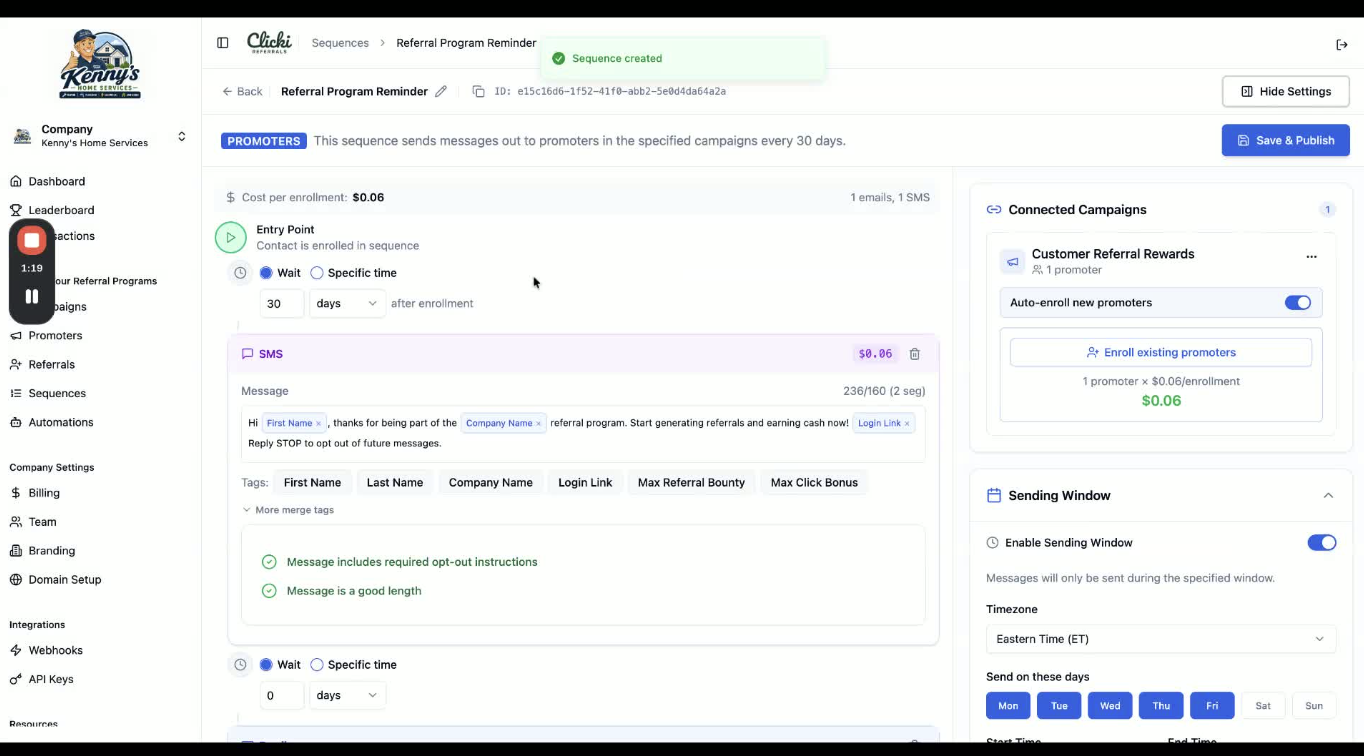
Check the text messaging cost shown in the sequence.
Note that text messages are billed per segment (example given: $0.03 per segment).
Review the total estimated cost based on message length and the number of promoters receiving it.
7. Customize the text and email content 1:48
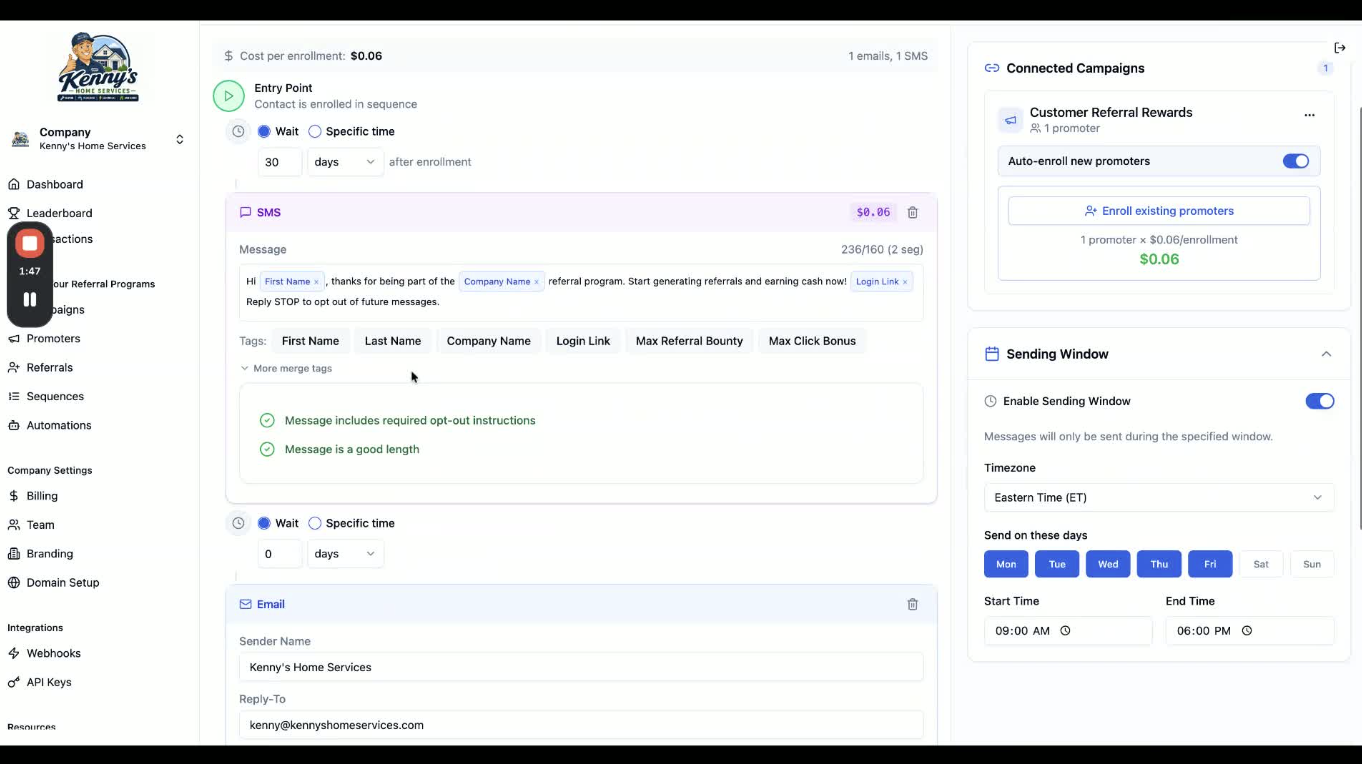
Edit the text message copy as needed:
Add your own wording
Remove unnecessary content
Insert any required details
Review the email template and update:
Business name
Reply-to email
Subject line
Email body
Confirm the referral reminder clearly explains the program and next steps for promoters.
8. Verify the bounty amount and referral link behavior 2:08
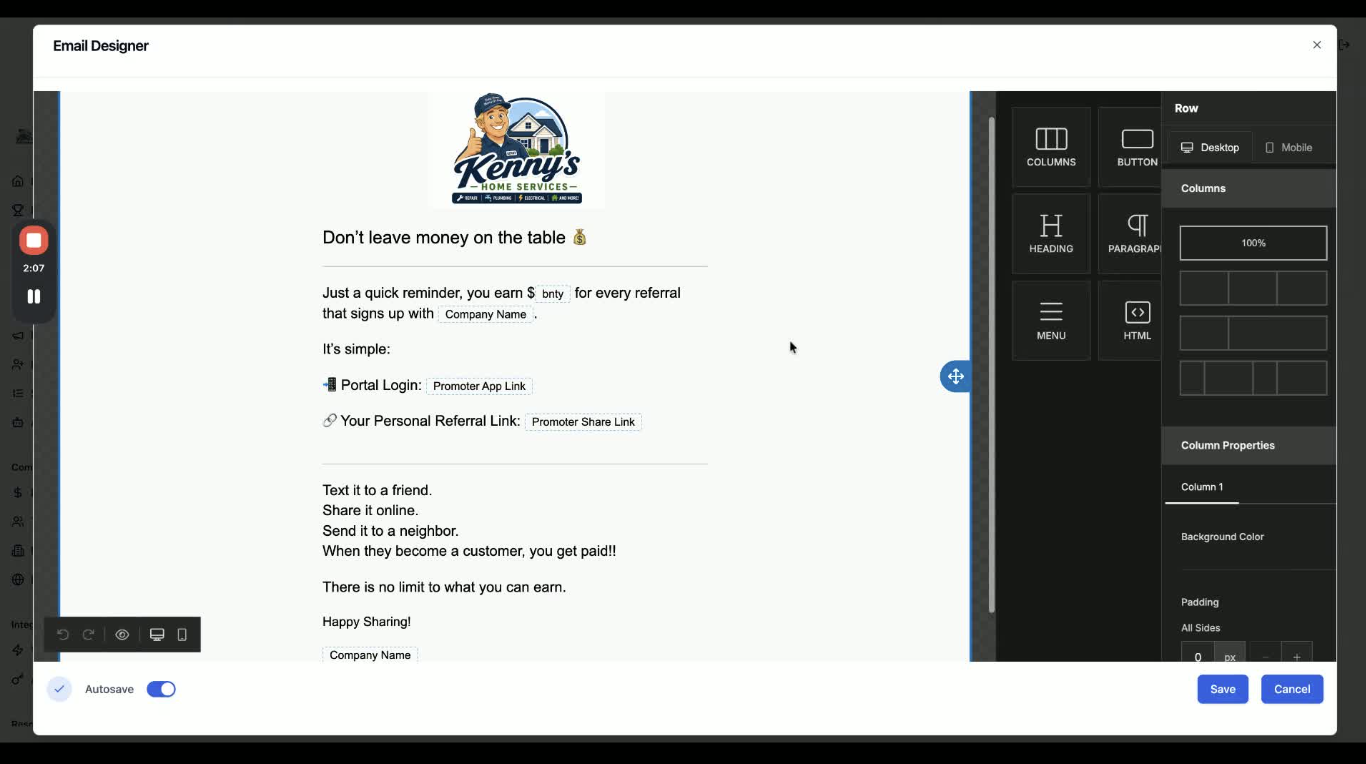
Check the bounty amount in the email template.
If your dashboard uses dynamic math, confirm the amount displays correctly.
If you use a custom offer, hard-code the current bounty amount so it matches your promotion.
Confirm the email includes the promoter link that sends recipients directly into the promoter app page without requiring sign-in.
9. Customize the template layout and design if needed 2:22
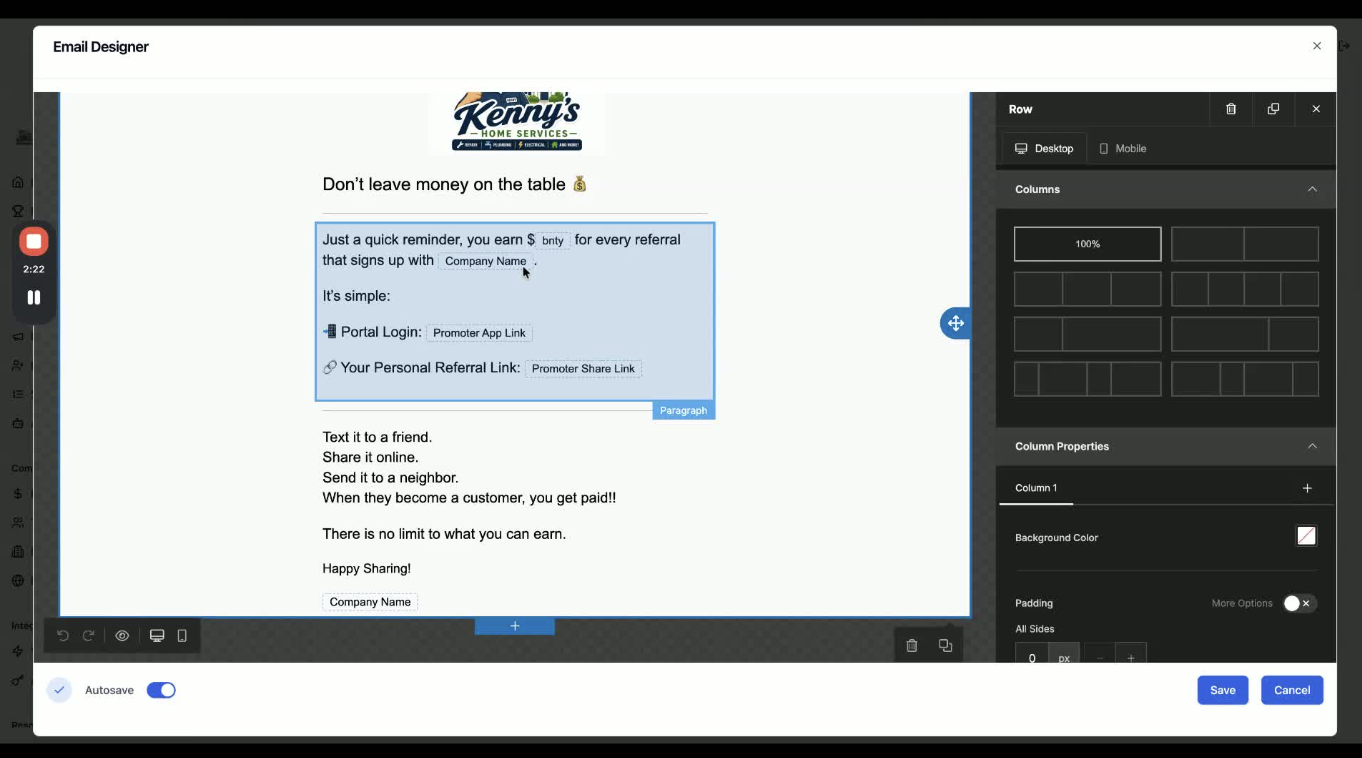
Use drag-and-drop editing to modify the email layout.
Pull in sections or elements from the right-hand panel as needed.
Update colors, formatting, and other design elements to match your brand.
Make sure the final email remains clear and easy to read.
10. Confirm recurrence, email delivery, and promoter enrollment 2:46
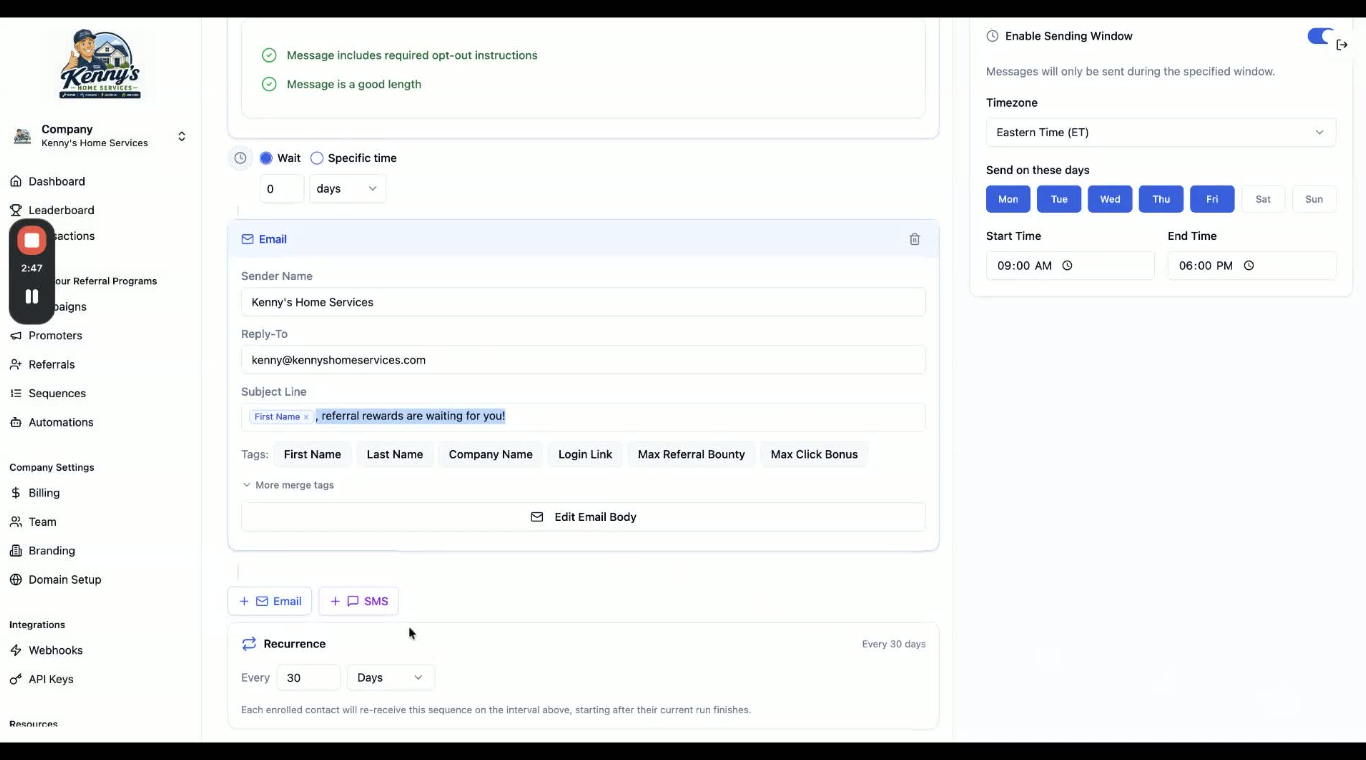
Recheck the recurrence settings at the bottom of the sequence.
If you decide not to use text messaging, keep the email enabled so promoters still receive the reminder.
Confirm the sending window is still correct.
Choose whether to enroll existing promoters, new promoters, or both.
11. Save and publish the sequence 3:10
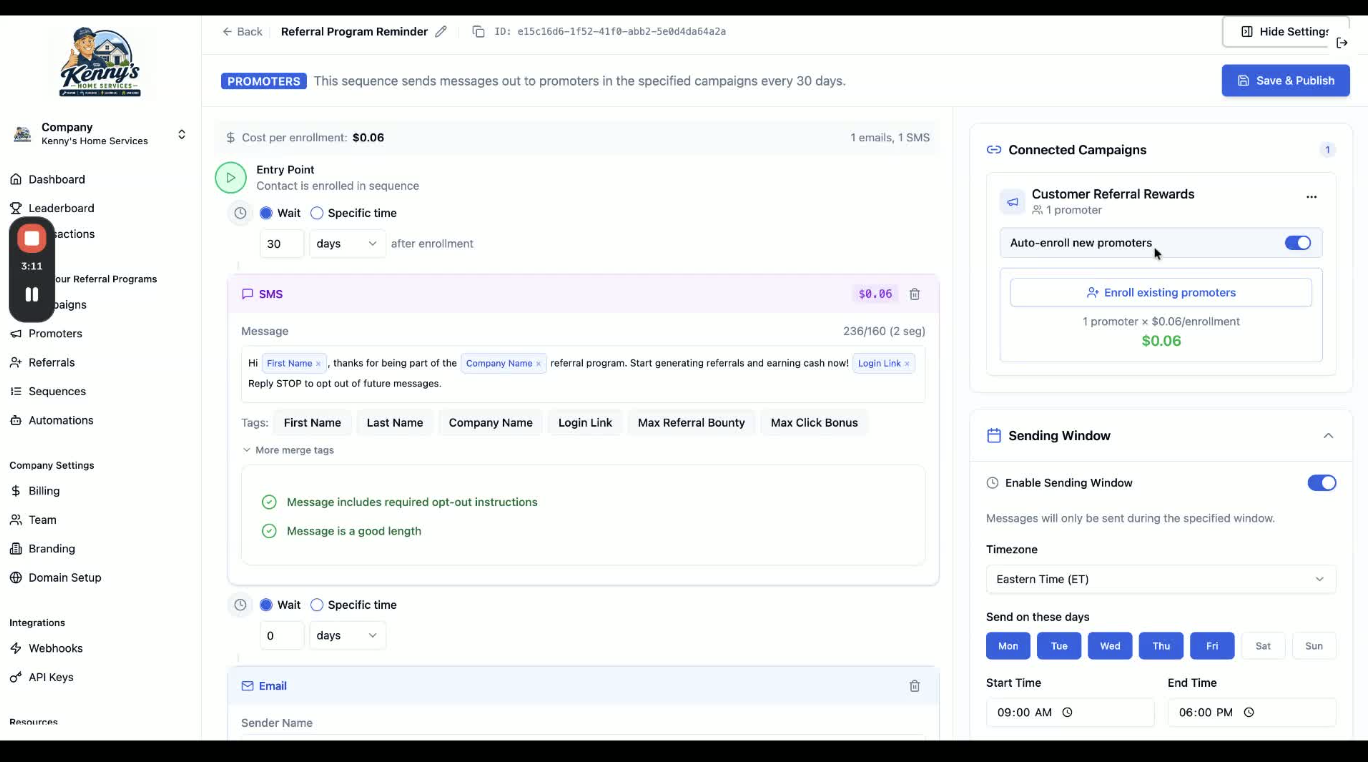
Review the sequence status before launch.
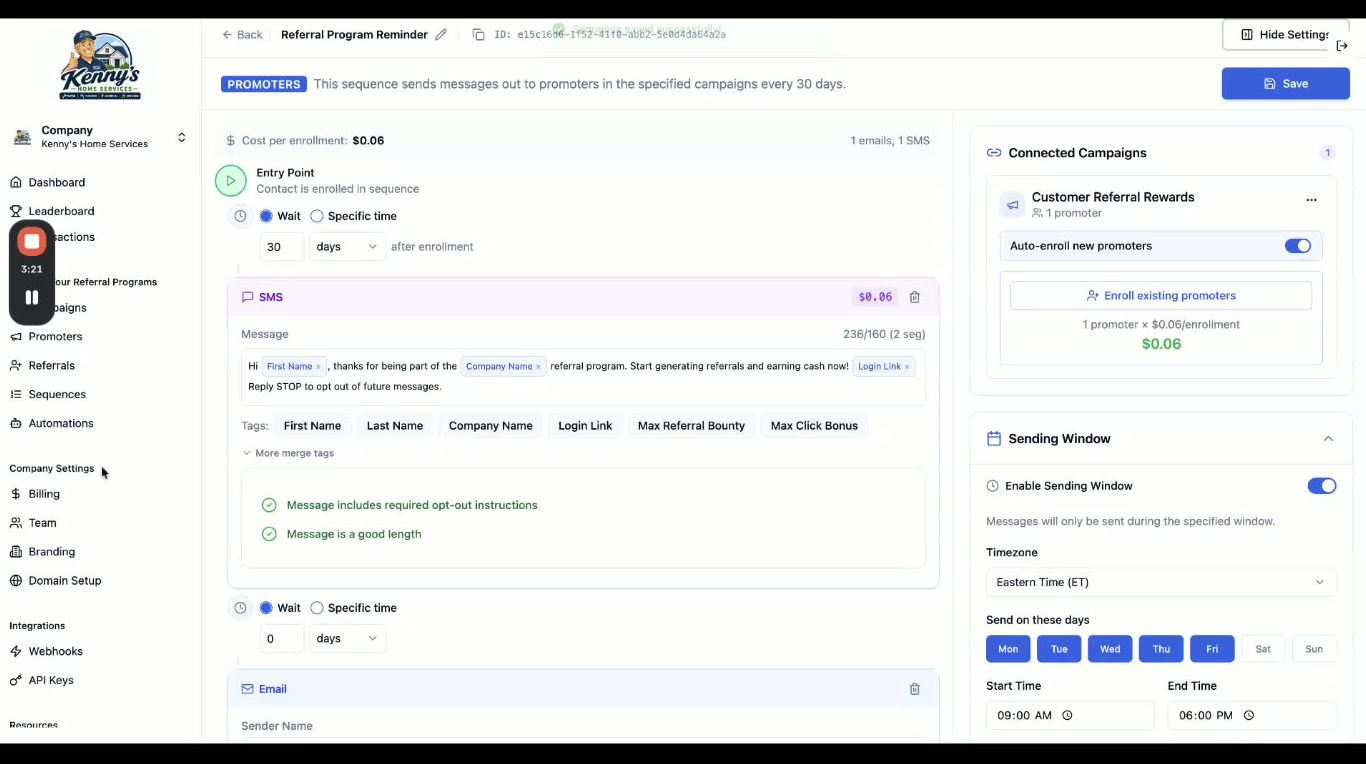
Remember that the sequence remains a draft until it is saved and published.
Save the sequence and publish it to make it live on the dashboard.
12. Add funding for messaging and automation credits 3:20
Go to the Billing tab.
Review subscription information on the left side.
Add or confirm payment methods if needed.
On the right side, verify that your real-time cash-outs and automations balance has enough funding.
Add credits to cover text message delivery costs before the sequence runs.
Cautionary Notes
Do not publish until you have reviewed recurrence, time zone, campaign selection, and message content.
Text messaging is not free; confirm available credits before enabling SMS.
Longer text messages cost more because they may use multiple segments.
If your bounty amount is customized, make sure the email reflects the correct current offer.
The sequence will not go live until it is explicitly saved and published.
Verify the sending window matches the correct time zone to avoid messages going out at the wrong time.
Tips for Efficiency
Start with the Referral Program Reminder recipe to save setup time.
Use the prebuilt template as a base, then customize only the parts that need changes.
If you are unsure about campaign selection or recurrence, proceed and refine later since these settings can be edited.
Keep email enabled even if you skip SMS so promoters still receive reminders at no messaging cost.
Check billing credits before publishing to avoid delays in message delivery.
Enroll both existing and new promoters if you want the sequence to reach your full audience immediately.